Make the story clear. Make the next step easy.
“I will open the official AQW site and app, show the real steps from account setup to records, then explain what AQW Token does today and what remains a plan.”
 AQW CREATOR EDITION
A ready-to-shoot AQW creator kit: the narrative, verified screen path, timed script and twenty publishable angles. Show the product first; let viewers decide for themselves.
Before recording: use a demonstration account; capture only the current official screens; hide recovery words, addresses and referral codes; paste your own invitation link and check current rules.
“I will open the official AQW site and app, show the real steps from account setup to records, then explain what AQW Token does today and what remains a plan.”
Explore AQW through the official site and app. Check the current terms and risks before deciding. My invitation link: [ADD YOUR INVITATION LINK]
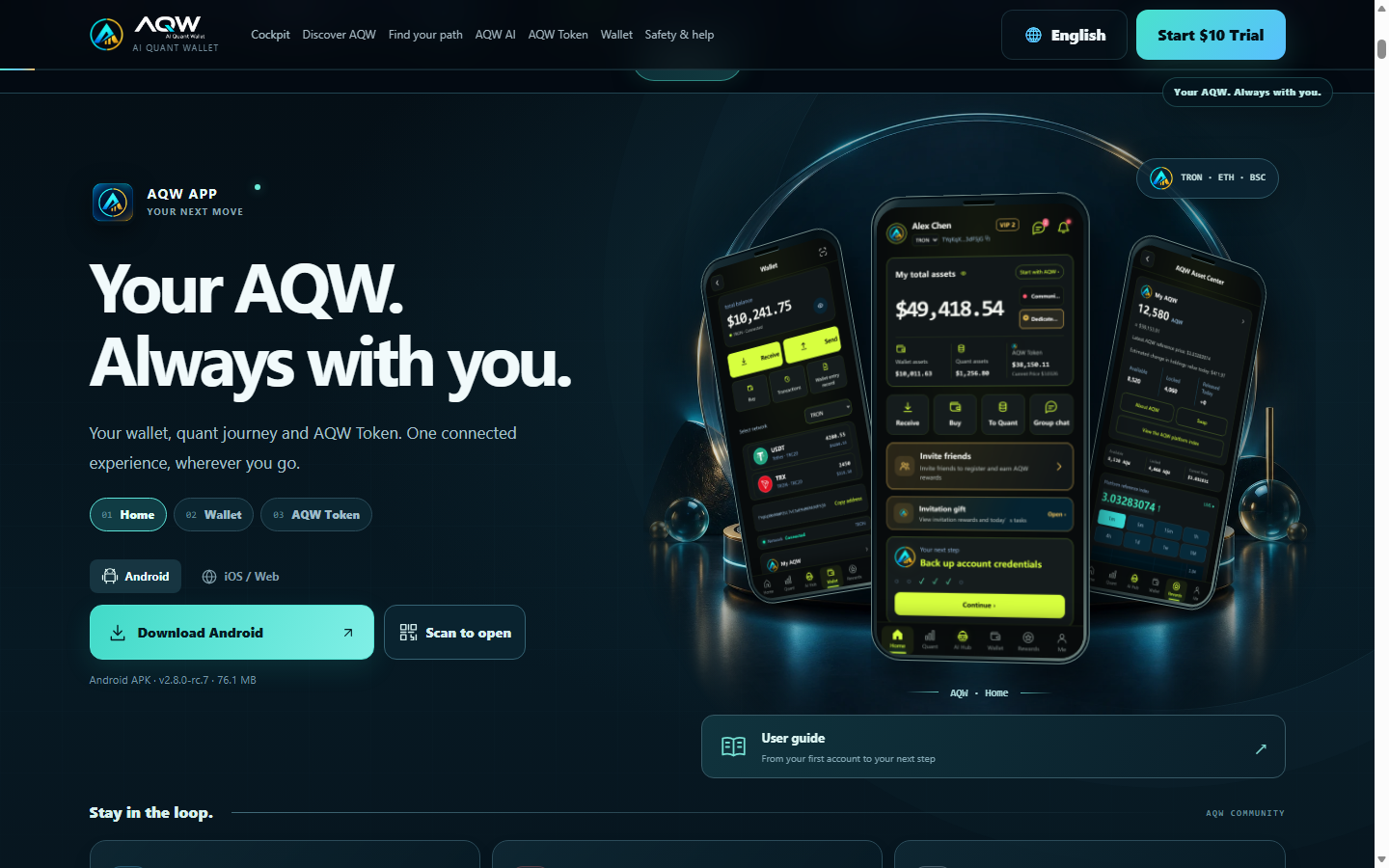
Start on the official website. Show where the product story, AQW AI, AQW Token, whitepaper and download entrance are found. Open the official download page. Show Android, iOS and web options as currently offered; never recommend an unverified install file.
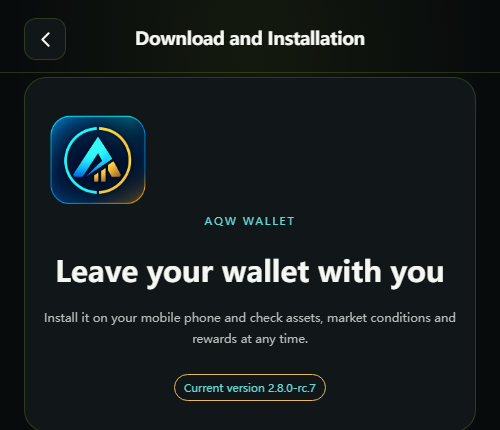
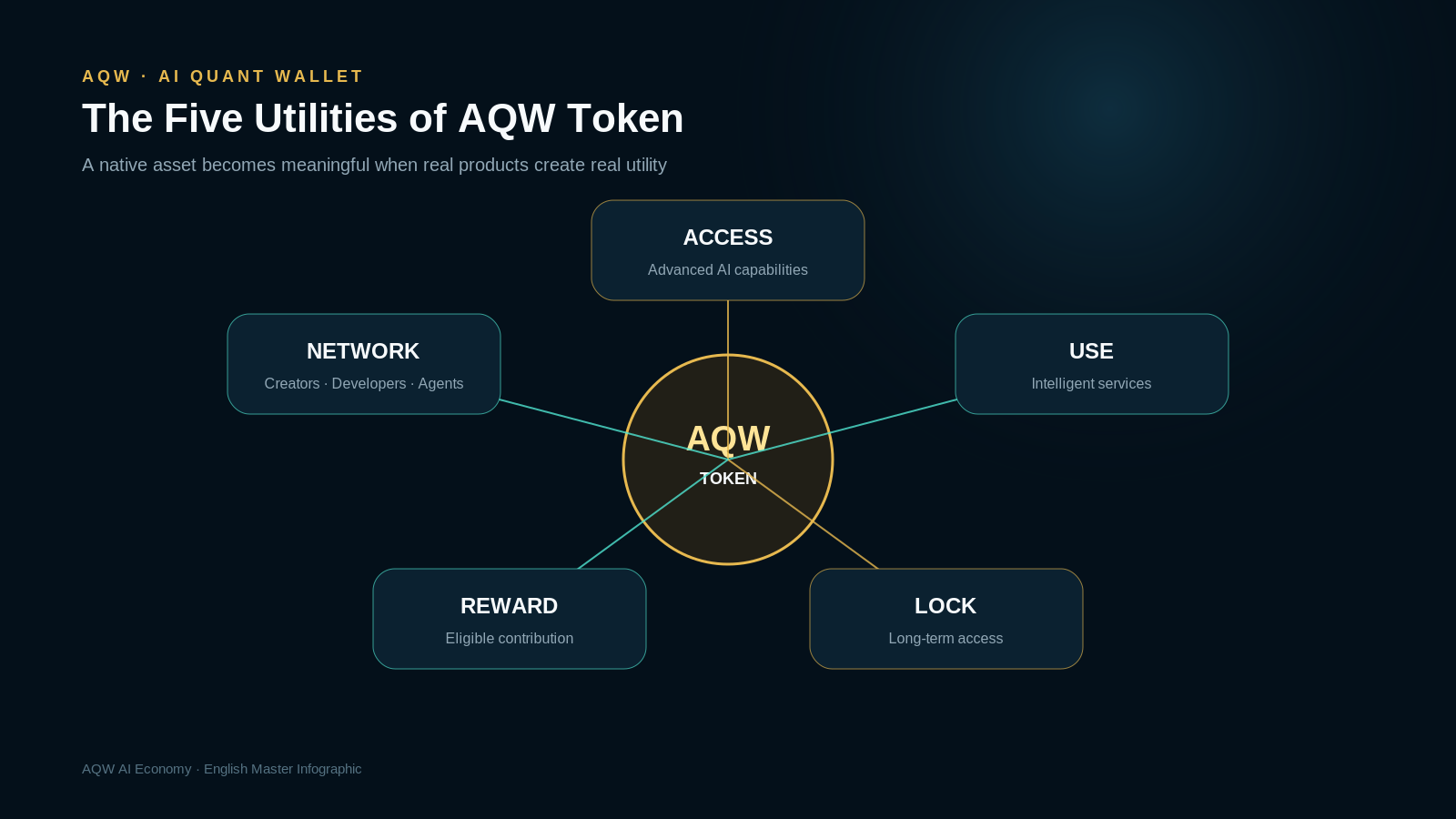
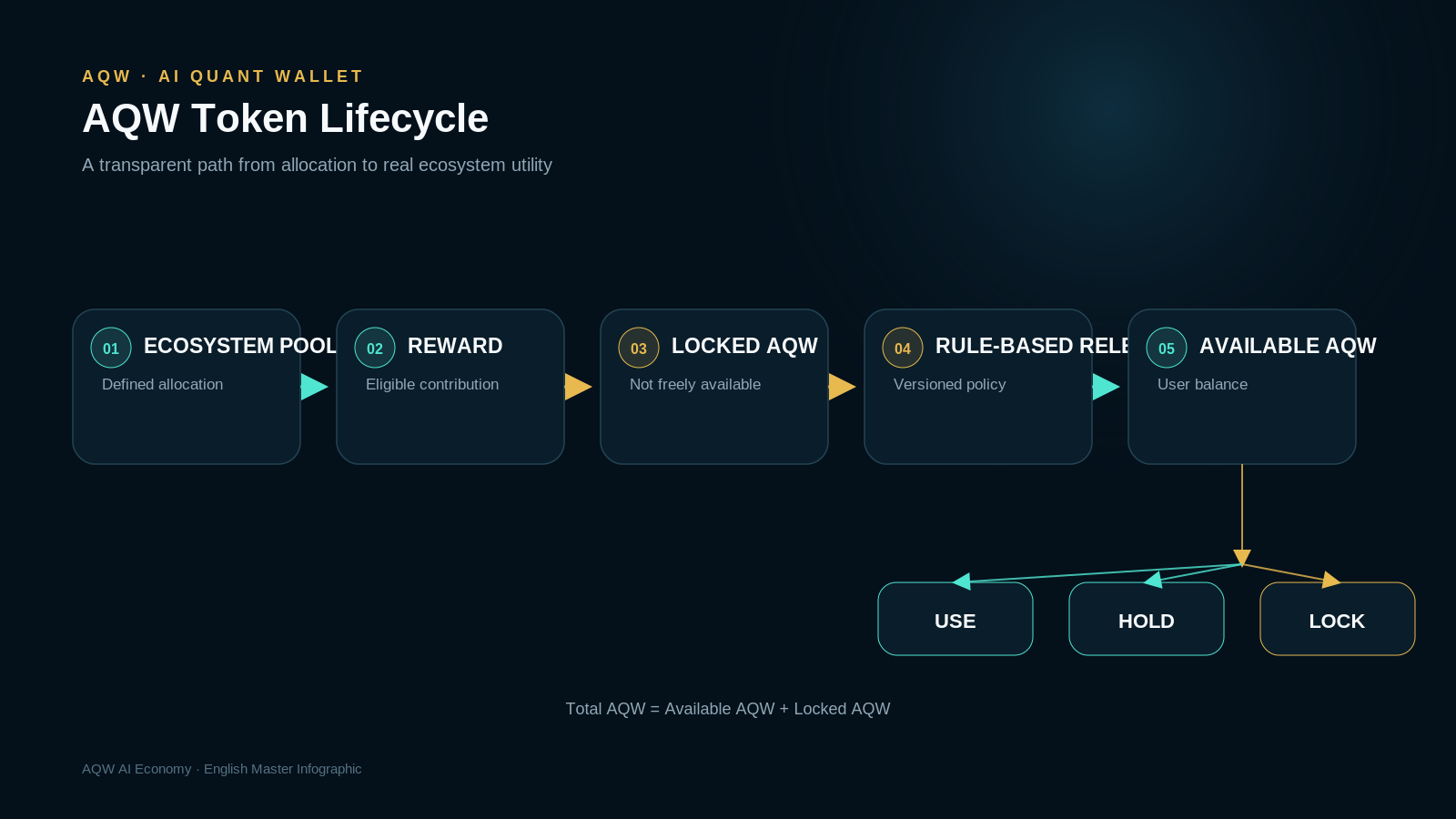
AQW Token deserves its own segment. Explain Available, Locked and Released balances; distinguish the indicative value from cash and future plans from live features.
Read at a natural pace and leave time for taps and screen close-ups; timings are editing targets, not a speed requirement.
ON SCREENOfficial website → Discover AQW → AQW AI / AQW Token → app Home
“I will open the official AQW site and app, show the real steps from account setup to records, then explain what AQW Token does today and what remains a plan.”
Start on the official website. Show where the product story, AQW AI, AQW Token, whitepaper and download entrance are found.
ON SCREENOfficial website → Download → Android / iOS / Web
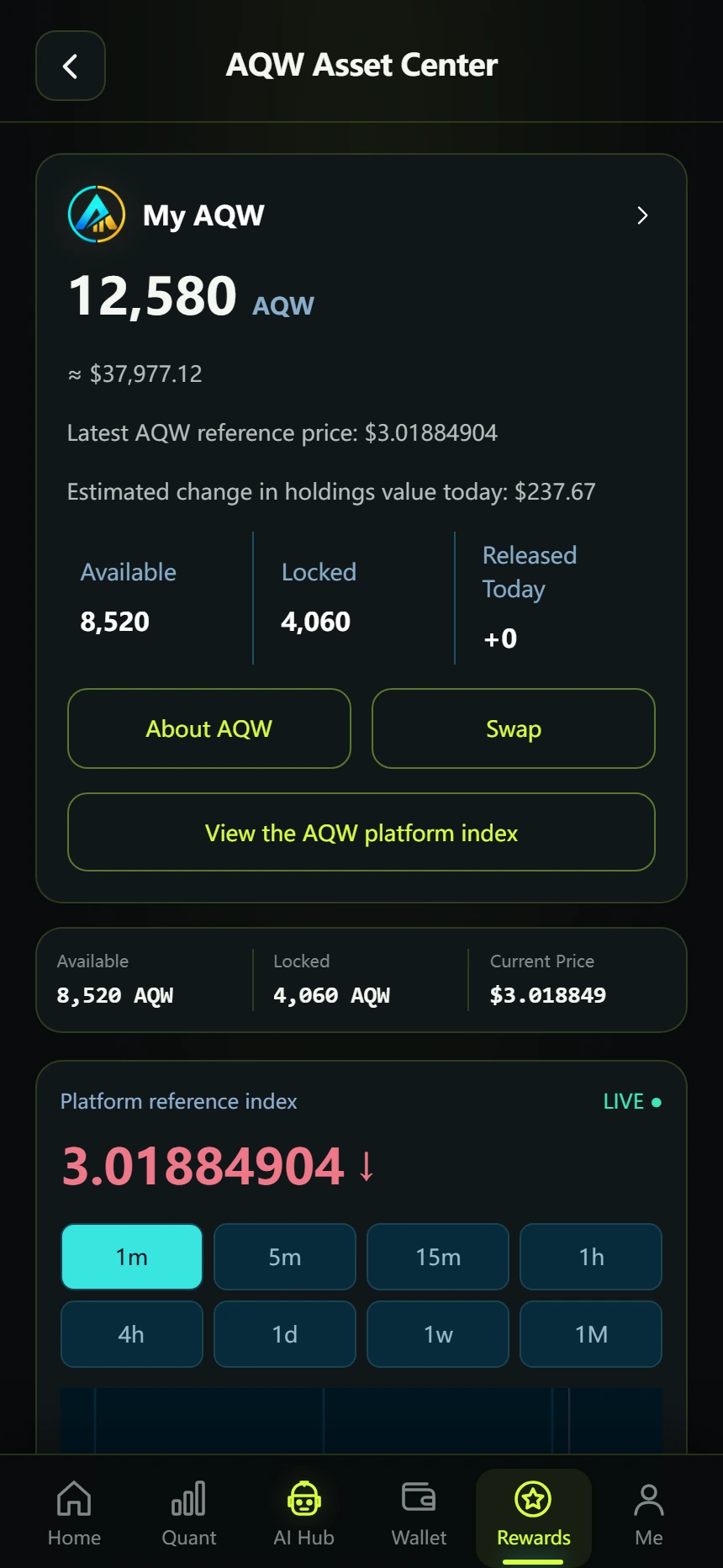
Open the official download page. Show Android, iOS and web options as currently offered; never recommend an unverified install file.
ON SCREENCreate Managed Wallet → avatar → recovery setup
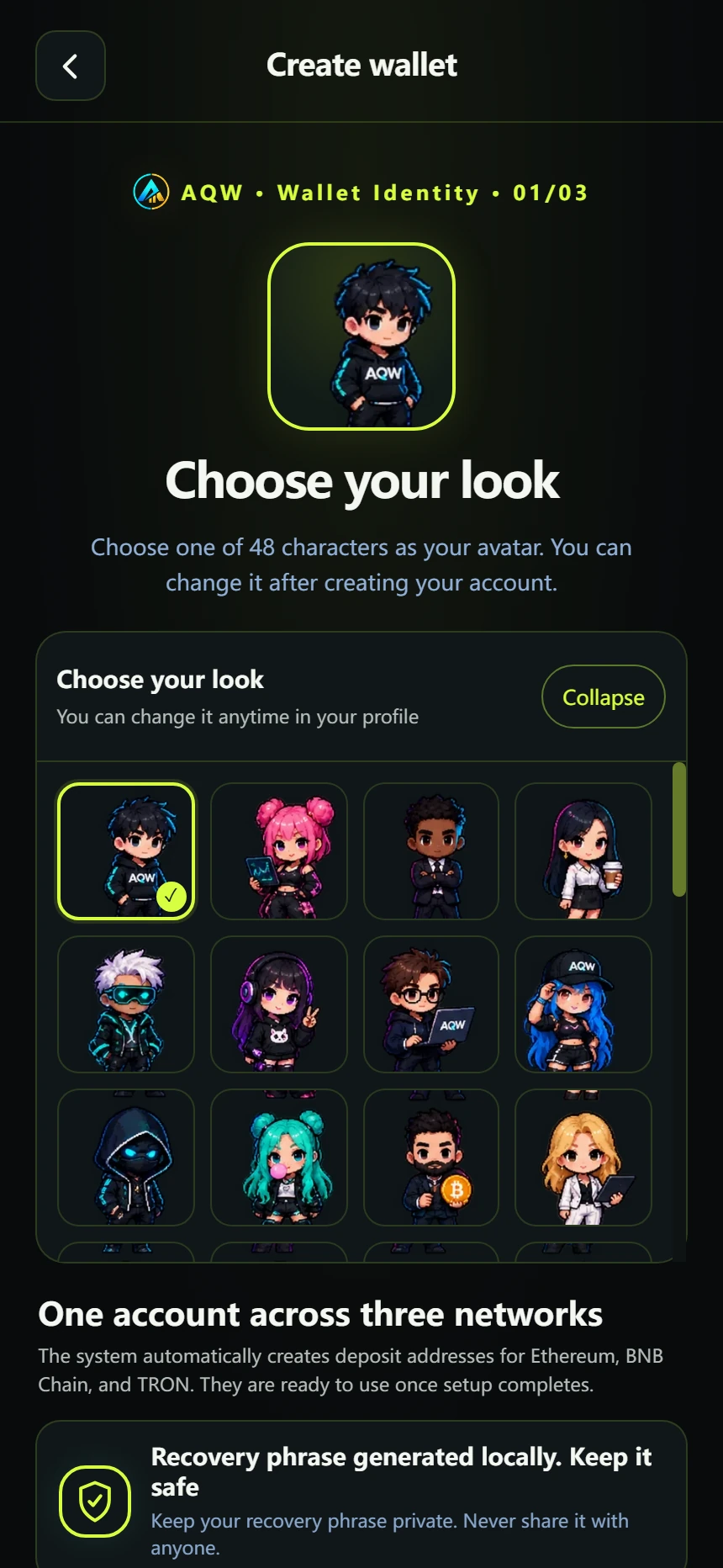
Open AQW and choose “Create Managed Wallet”. Select your avatar and enter a display name.
Set and confirm a password: at least 8 characters, including a letter and a number. Add an invitation code if you have one.
Read and accept the terms, then choose “Create Three-Network Wallet”. Continue to the recovery setup.
Write the 12 recovery words down offline, in the exact order shown. Keep them somewhere private.
Never share passwords or recovery words, including with support. Recovery words are concealed in these screenshots.
ON SCREENWallet → Receive → asset → network → own address
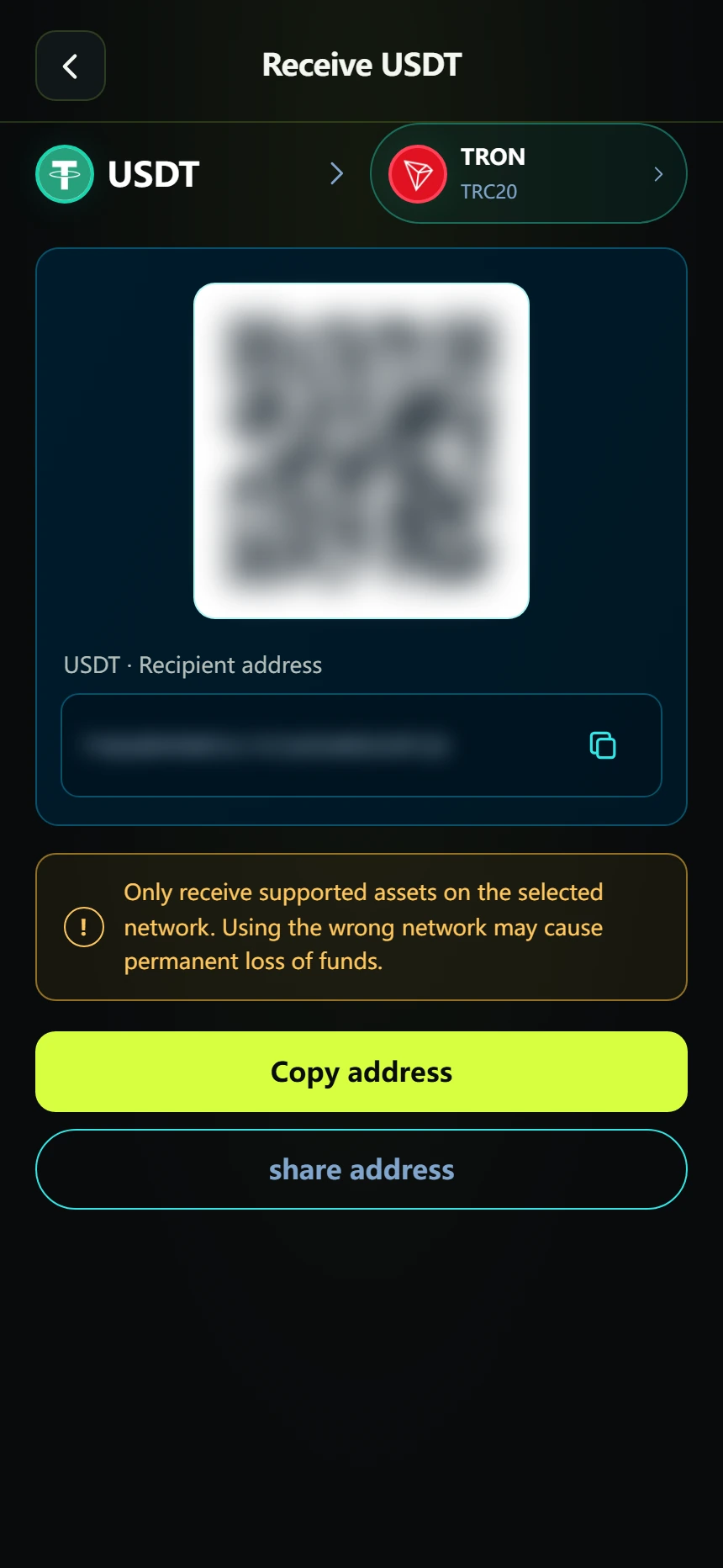
Open Wallet → “Receive”. Choose the asset and network that match the transfer you will make.
Copy your own receiving address or scan the QR code inside the app. Send only the supported asset on that same network.
Allow time for network confirmations. Check your Wallet balance and transaction records for the result.
The screenshot address and QR code are hidden and cannot be used. A wrong asset or network can cause a loss.
ON SCREENQuant → Plans → payment breakdown → My plan orders → My orders
In Quant, open the available plans. Read the amount limits, plan duration and minimum closing period before choosing “Open this plan”.
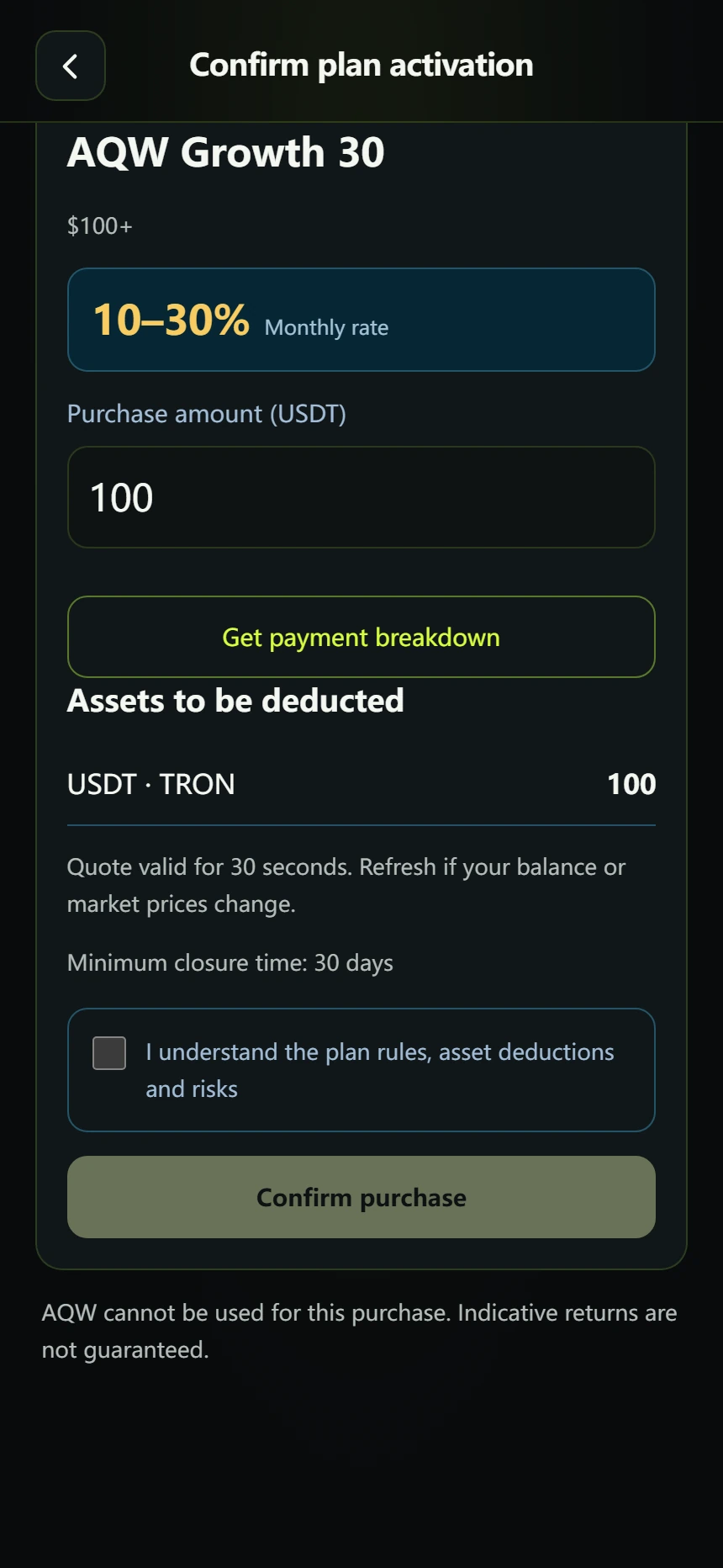
Enter the amount in USDT and select “Get payment breakdown”. Review which wallet assets will be debited.
Check the payment quote and closing conditions, accept the terms and choose “Confirm purchase”. The quote expires after 30 seconds; refresh it if needed.
AQW Token is not a payment asset for activating these plans. Displayed rates are estimates, not guaranteed returns.
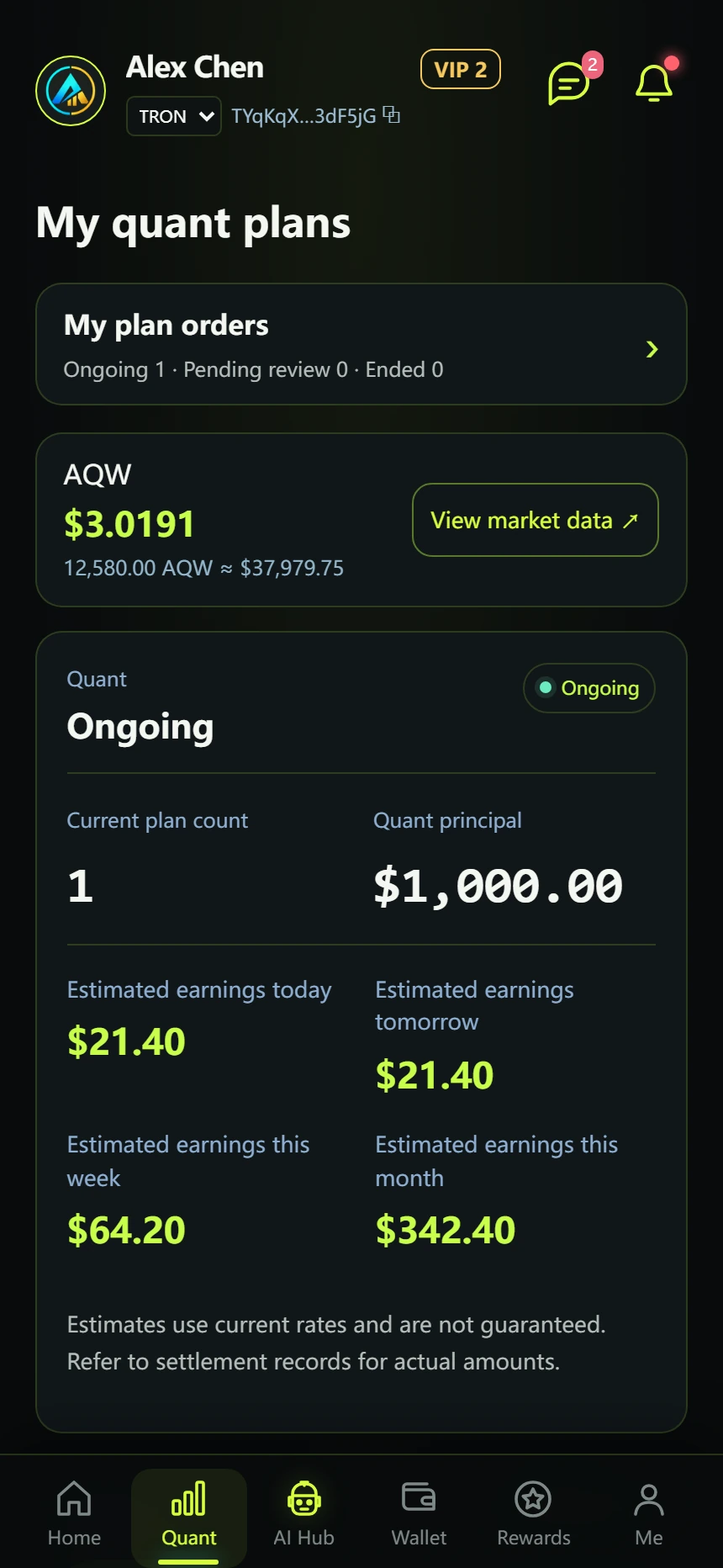
Open the Quant dashboard and inspect your own plans and their current status.
Compare settlement and wallet entries. Check the closing rules of a position before requesting to close it.
ON SCREENAQW Asset Center → Available / Locked / Released → whitepaper
AQW Token deserves its own segment. Explain Available, Locked and Released balances; distinguish the indicative value from cash and future plans from live features.
Open “My AQW” or AQW Asset Center. Read available, locked and released amounts separately.
Review the applicable release and unlocking conditions before using your balance.
Use the index and history views to understand changes and review credit or release records.
An indicative USD value is not a cash balance or a guaranteed conversion value. Follow the current in-app rules.
ON SCREENWallet → Send → network → recipient → fees → confirmation
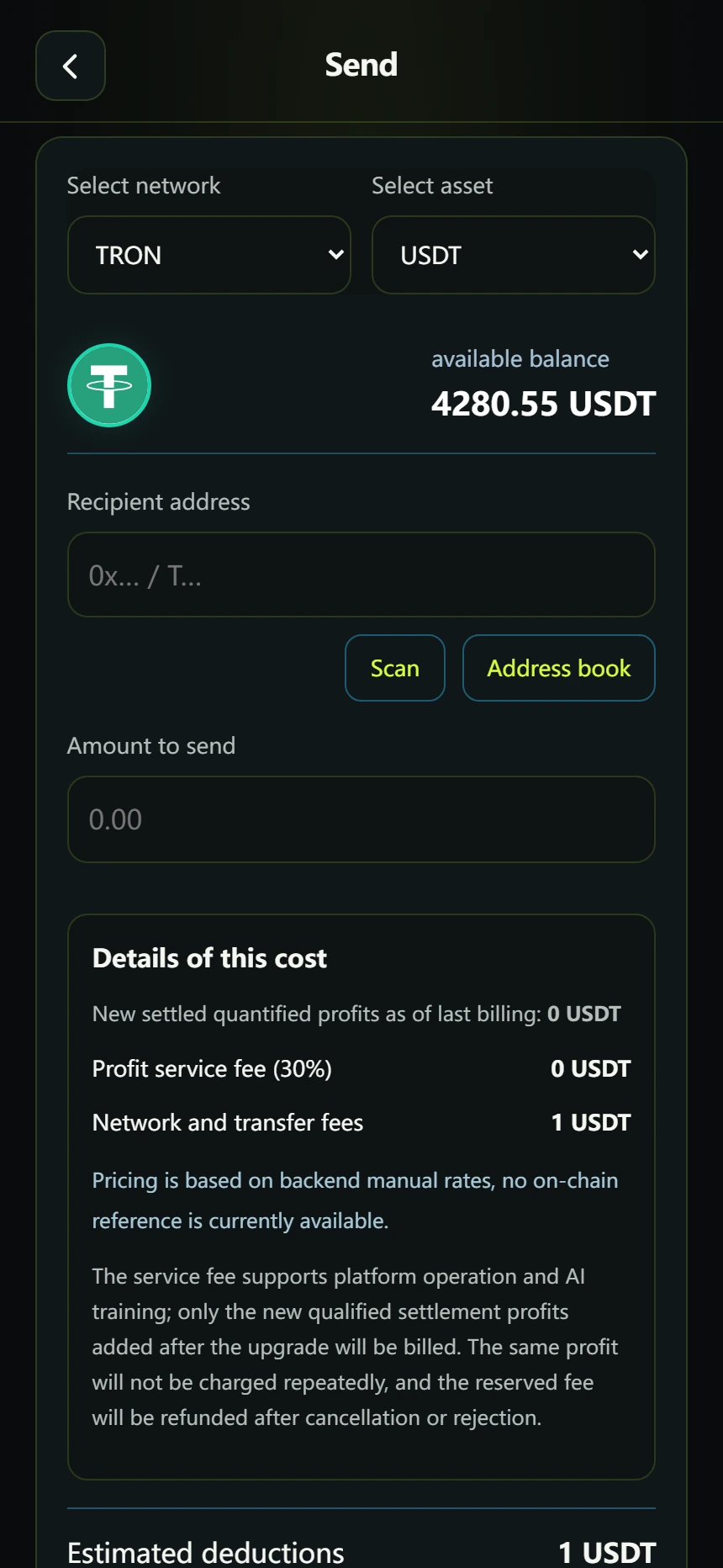
Open Wallet → “Send”. Select the asset and matching network, then enter and verify the recipient and amount.
Review the fee, gas requirements and security confirmation before submitting. Never send using an address copied from this guide.
If applicable, the profit service fee uses the current VIP rate on eligible, newly settled positive quant profit not yet charged. It is not a percentage of the amount sent. Check the actual confirmation page.
Track the result in Wallet transactions. If a transfer needs investigation, send its transaction ID to official support.
Do not submit the same transfer repeatedly while it is pending. Support never needs your password or recovery words.
ON SCREENRewards → Friends and commissions → Invite friends
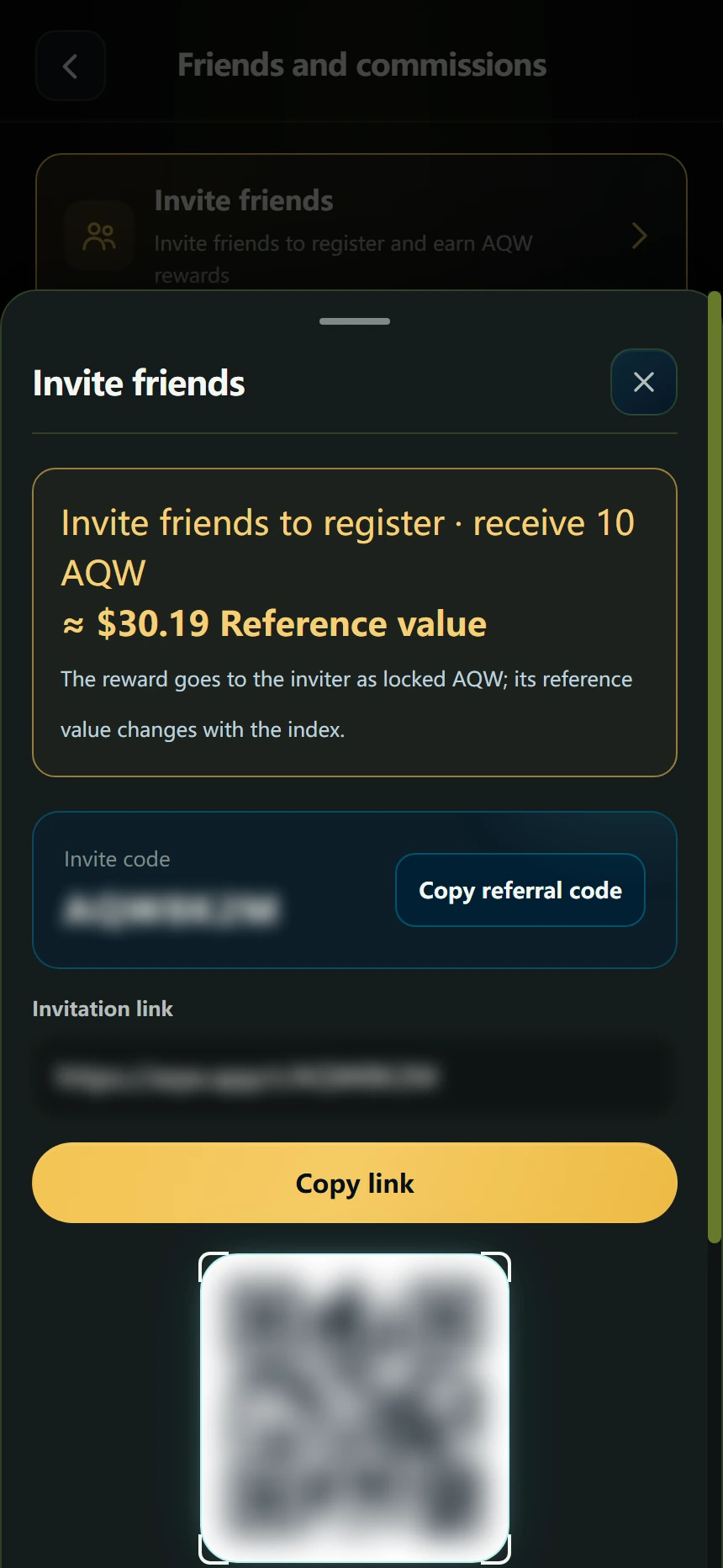
Choose “Invite friends” on Home, or open the friends and commissions area under Rewards.
Open your invitation panel. Copy your referral code or link, or save and share your own invitation QR code.
Ask friends to use your invitation when registering. Follow actual friend and commission records in the app.
Commission is based on eligible settled quant profits, not deposited principal. Example previews are not earned commissions.
ON SCREENOfficial website → whitepaper → Download → invitation link in description
Do not promise profits, capital protection, a token price or an approval date. Quant estimates are not settled returns. Verify live plan, fee, VIP and invitation rules before publishing.
Pick a topic, add your own referral link, then copy the title or description. Each description points viewers to the official download page.
Pick a topic, add your own referral link, then copy the title or description. Each description points viewers to the official download page.
Your link stays in this browser. Only a valid http(s) link is inserted into descriptions.
Open AQW and choose “Create Managed Wallet”. Select your avatar and enter a display name. Write the 12 recovery words down offline, in the exact order shown. Keep them somewhere private. Never share passwords or recovery words, including with support. Recovery words are concealed in these screenshots.
Download: https://aqwwallet.com/download
Your invitation link: [ADD YOUR INVITATION LINK]
Open AQW and choose “Create Managed Wallet”. Select your avatar and enter a display name. Open Wallet → “Receive”. Choose the asset and network that match the transfer you will make. In Quant, open the available plans. Read the amount limits, plan duration and minimum closing period before choosing “Open this plan”. AQW Token is not a payment asset for activating these plans. Displayed rates are estimates, not guaranteed returns.
Download: https://aqwwallet.com/download
Your invitation link: [ADD YOUR INVITATION LINK]
Open AQW and choose “Create Managed Wallet”. Select your avatar and enter a display name. Open the Quant dashboard and inspect your own plans and their current status. The all-orders view is broader than your account. Do not read its totals as your own profit.
Download: https://aqwwallet.com/download
Your invitation link: [ADD YOUR INVITATION LINK]
Open AQW and choose “Create Managed Wallet”. Select your avatar and enter a display name. Open “My AQW” or AQW Asset Center. Read available, locked and released amounts separately. An indicative USD value is not a cash balance or a guaranteed conversion value. Follow the current in-app rules.
Download: https://aqwwallet.com/download
Your invitation link: [ADD YOUR INVITATION LINK]
Open AQW and choose “Create Managed Wallet”. Select your avatar and enter a display name. Choose “Invite friends” on Home, or open the friends and commissions area under Rewards. Commission is based on eligible settled quant profits, not deposited principal. Example previews are not earned commissions.
Download: https://aqwwallet.com/download
Your invitation link: [ADD YOUR INVITATION LINK]
Open “My AQW” or AQW Asset Center. Read available, locked and released amounts separately. An indicative USD value is not a cash balance or a guaranteed conversion value. Follow the current in-app rules.
Download: https://aqwwallet.com/download
Your invitation link: [ADD YOUR INVITATION LINK]
Open “My AQW” or AQW Asset Center. Read available, locked and released amounts separately. Open the Quant dashboard and inspect your own plans and their current status. The all-orders view is broader than your account. Do not read its totals as your own profit.
Download: https://aqwwallet.com/download
Your invitation link: [ADD YOUR INVITATION LINK]
Open “My AQW” or AQW Asset Center. Read available, locked and released amounts separately. In Quant, open the available plans. Read the amount limits, plan duration and minimum closing period before choosing “Open this plan”. AQW Token is not a payment asset for activating these plans. Displayed rates are estimates, not guaranteed returns.
Download: https://aqwwallet.com/download
Your invitation link: [ADD YOUR INVITATION LINK]
Open “My AQW” or AQW Asset Center. Read available, locked and released amounts separately. Open Wallet → “Send”. Select the asset and matching network, then enter and verify the recipient and amount. Do not submit the same transfer repeatedly while it is pending. Support never needs your password or recovery words.
Download: https://aqwwallet.com/download
Your invitation link: [ADD YOUR INVITATION LINK]
Open “My AQW” or AQW Asset Center. Read available, locked and released amounts separately. Open Wallet → “Receive”. Choose the asset and network that match the transfer you will make. The screenshot address and QR code are hidden and cannot be used. A wrong asset or network can cause a loss.
Download: https://aqwwallet.com/download
Your invitation link: [ADD YOUR INVITATION LINK]
Open “My AQW” or AQW Asset Center. Read available, locked and released amounts separately. Choose “Invite friends” on Home, or open the friends and commissions area under Rewards. Commission is based on eligible settled quant profits, not deposited principal. Example previews are not earned commissions.
Download: https://aqwwallet.com/download
Your invitation link: [ADD YOUR INVITATION LINK]
Open AQW and choose “Create Managed Wallet”. Select your avatar and enter a display name. Write the 12 recovery words down offline, in the exact order shown. Keep them somewhere private. Never share passwords or recovery words, including with support. Recovery words are concealed in these screenshots.
Download: https://aqwwallet.com/download
Your invitation link: [ADD YOUR INVITATION LINK]
Open Wallet → “Receive”. Choose the asset and network that match the transfer you will make. The screenshot address and QR code are hidden and cannot be used. A wrong asset or network can cause a loss.
Download: https://aqwwallet.com/download
Your invitation link: [ADD YOUR INVITATION LINK]
In Quant, open the available plans. Read the amount limits, plan duration and minimum closing period before choosing “Open this plan”. AQW Token is not a payment asset for activating these plans. Displayed rates are estimates, not guaranteed returns.
Download: https://aqwwallet.com/download
Your invitation link: [ADD YOUR INVITATION LINK]
Open the Quant dashboard and inspect your own plans and their current status. The all-orders view is broader than your account. Do not read its totals as your own profit.
Download: https://aqwwallet.com/download
Your invitation link: [ADD YOUR INVITATION LINK]
Open Wallet → “Send”. Select the asset and matching network, then enter and verify the recipient and amount. Do not submit the same transfer repeatedly while it is pending. Support never needs your password or recovery words.
Download: https://aqwwallet.com/download
Your invitation link: [ADD YOUR INVITATION LINK]
Open AQW and choose “Create Managed Wallet”. Select your avatar and enter a display name. In Quant, open the available plans. Read the amount limits, plan duration and minimum closing period before choosing “Open this plan”. Open the Quant dashboard and inspect your own plans and their current status. The all-orders view is broader than your account. Do not read its totals as your own profit.
Download: https://aqwwallet.com/download
Your invitation link: [ADD YOUR INVITATION LINK]
Choose “Invite friends” on Home, or open the friends and commissions area under Rewards. Commission is based on eligible settled quant profits, not deposited principal. Example previews are not earned commissions.
Download: https://aqwwallet.com/download
Your invitation link: [ADD YOUR INVITATION LINK]
Choose “Invite friends” on Home, or open the friends and commissions area under Rewards. Write the 12 recovery words down offline, in the exact order shown. Keep them somewhere private. Never share passwords or recovery words, including with support. Recovery words are concealed in these screenshots.
Download: https://aqwwallet.com/download
Your invitation link: [ADD YOUR INVITATION LINK]
Choose “Invite friends” on Home, or open the friends and commissions area under Rewards. Open “My AQW” or AQW Asset Center. Read available, locked and released amounts separately. An indicative USD value is not a cash balance or a guaranteed conversion value. Follow the current in-app rules.
Download: https://aqwwallet.com/download
Your invitation link: [ADD YOUR INVITATION LINK]
Do not promise profits, capital protection, a token price or an approval date. Quant estimates are not settled returns. Verify live plan, fee, VIP and invitation rules before publishing.